Blocks: save anything
Every block has a menu. Favorite it, save it, ask about it, or take it off the page.
ToolsBlocks1 min read
A block is any card with a title on a page: a table in the data dictionary, a model's card, a chart. Every block has the same menu, at its top right.
The block menu
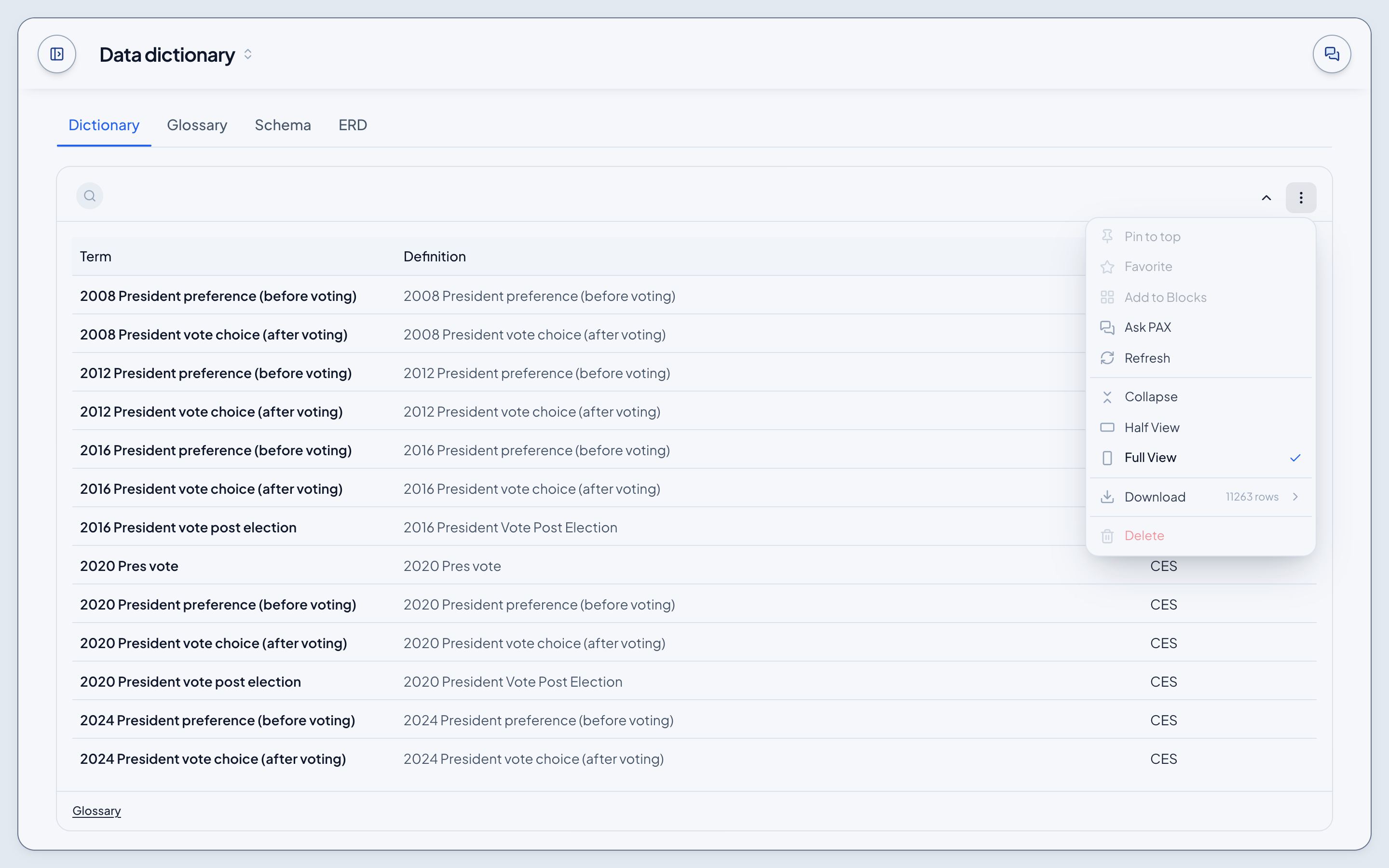
- Pin to top moves it to the top of the page.
- Favorite adds it to your favorites in the sidebar.
- Add to Blocks saves it to the Blocks shelf in Tools.
- Ask PAX opens Chat with the block as context.
- Refresh reloads its data.
- Collapse, Half View and Full View size it.
- Download, where a block has rows, saves them as CSV or JSON.
- Delete takes it off the page and onto the Blocks shelf, where opening it puts it back.
The Blocks shelf
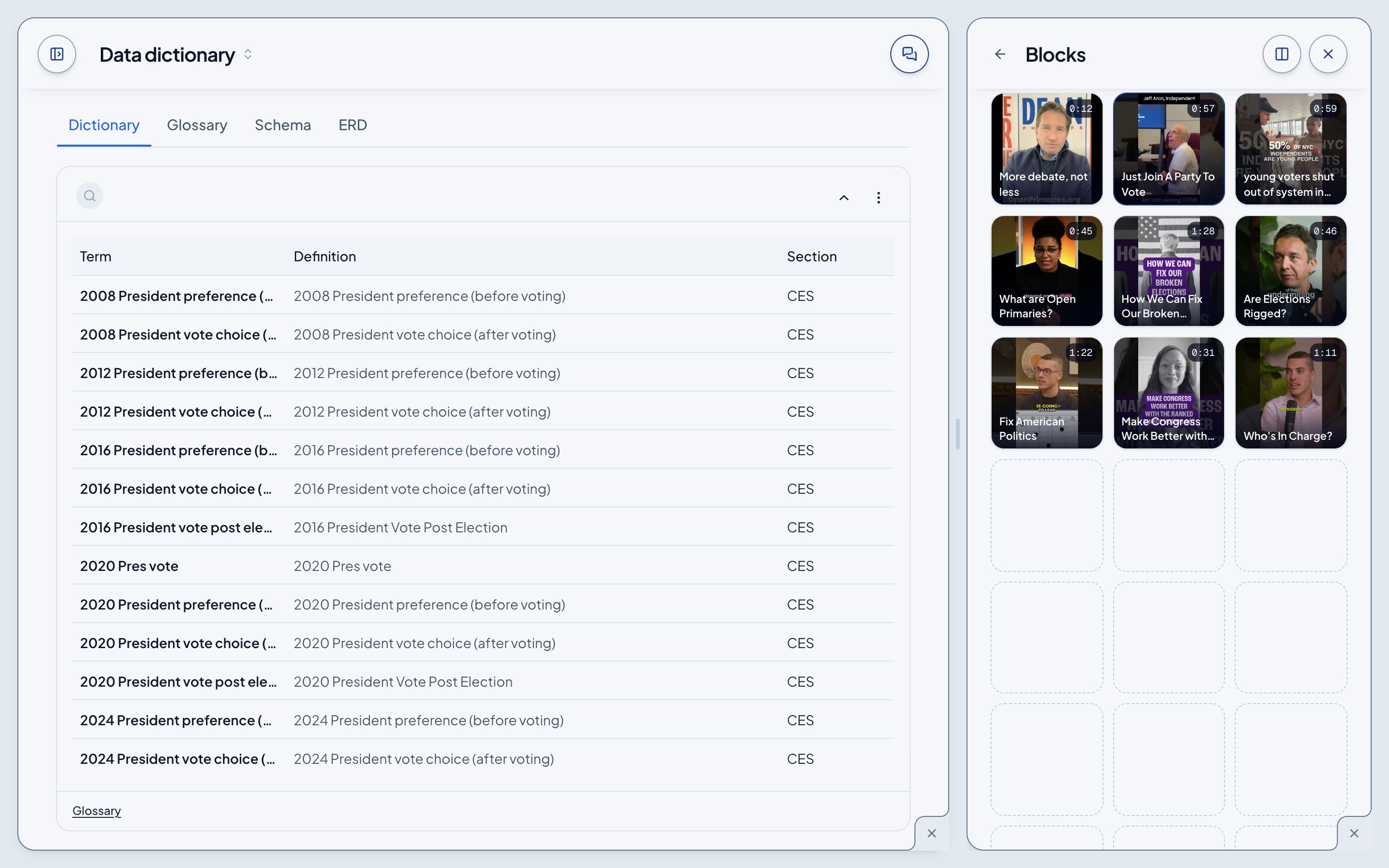
Tools > Blocks lays out everything you've saved as tiles, beside the page's own blocks.
- Click a tile to jump back to it, on whatever page it lives.
- Drag a tile to reorder the shelf, or onto the chat to ask about it.
- A deleted block's tile is dimmed; open it to put it back.